Five ways to layer sounds on a keyboard
Originally published on jonatascastro.com. English edition translated and revised 01 Oct 2026. Historical examples are identified in the text.
By “mixing sounds on a keyboard,” I mean playing more than one sound with a single key press. A piano and a pad might sound together, for example, even though your hands are playing just one part.
I have used several ways to do this across different keyboards. The names vary by manufacturer, but the underlying ideas repeat: layer sounds, assign keyboard zones, or send the same performance to several instruments.
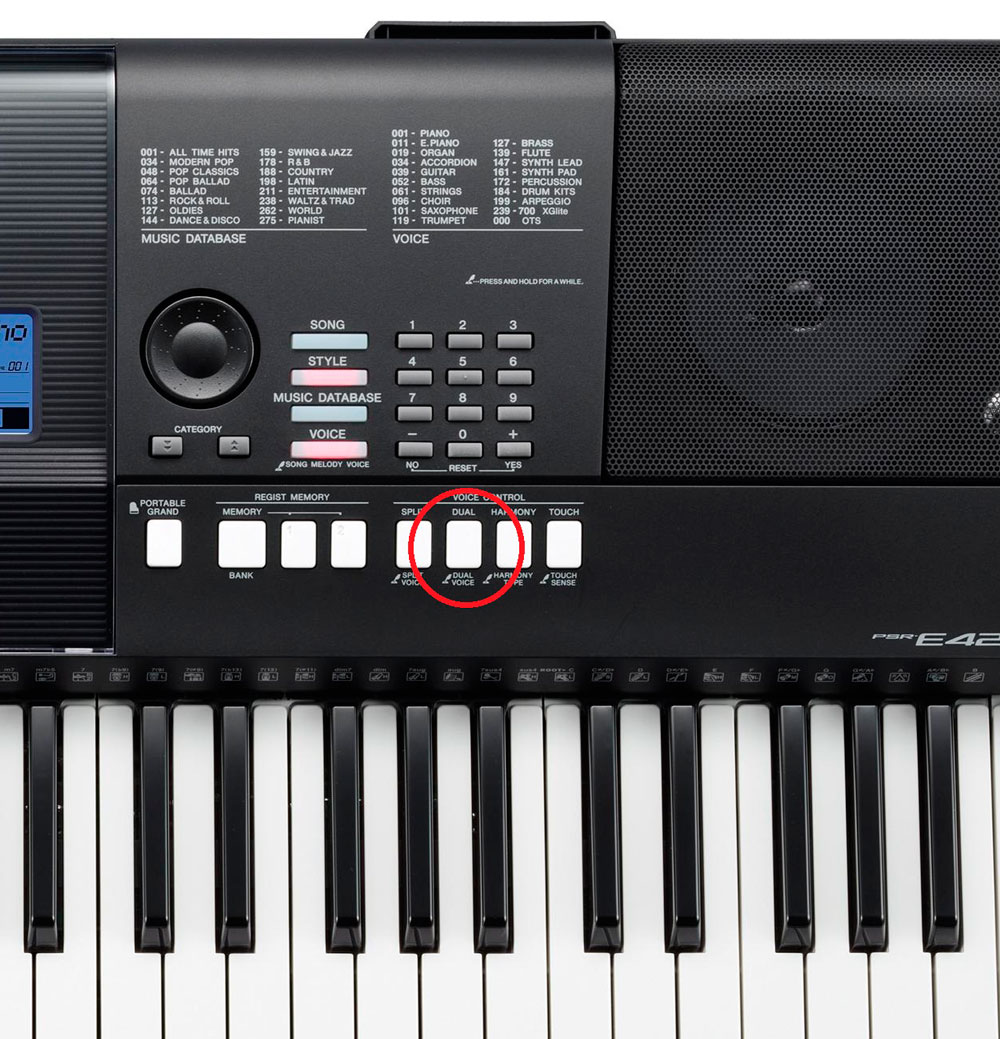
1. Use a Dual or Layer function
Many keyboards provide a button or menu named Dual, Dual Voice, or Layer. Enable it, choose a second sound, and the keyboard plays it alongside the main voice.
This is the quickest starting point. Balance the two volumes before judging the combination; a quiet supporting layer can be more useful than two equally loud sounds.
2. Edit layers inside a patch
A patch or voice can contain several internal layers. On a synthesizer that supports this, you might place piano in one layer and a pad in another.
Depending on the instrument, layers can have their own volume, envelope, velocity response, or key range. That lets you shape the combination as one playable sound.
Check the instrument's architecture: not every keyboard exposes the same editing controls.
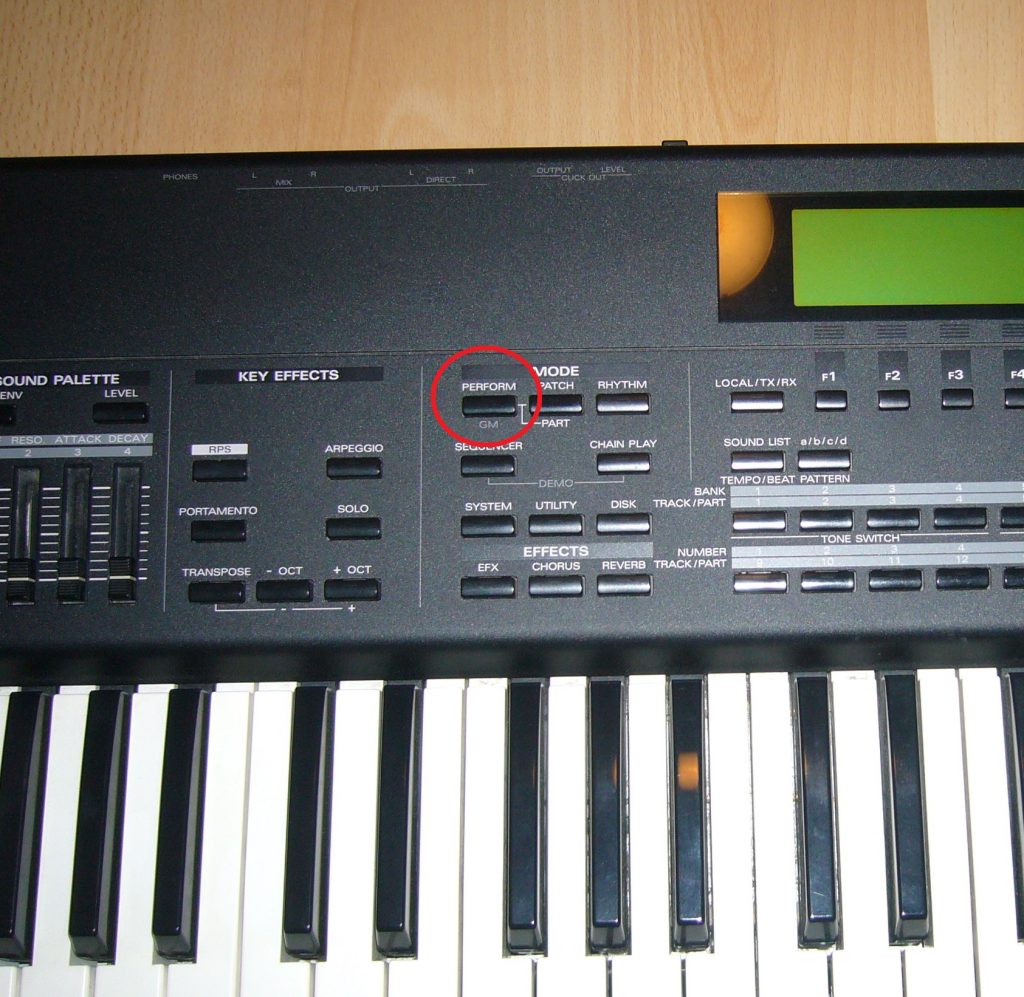
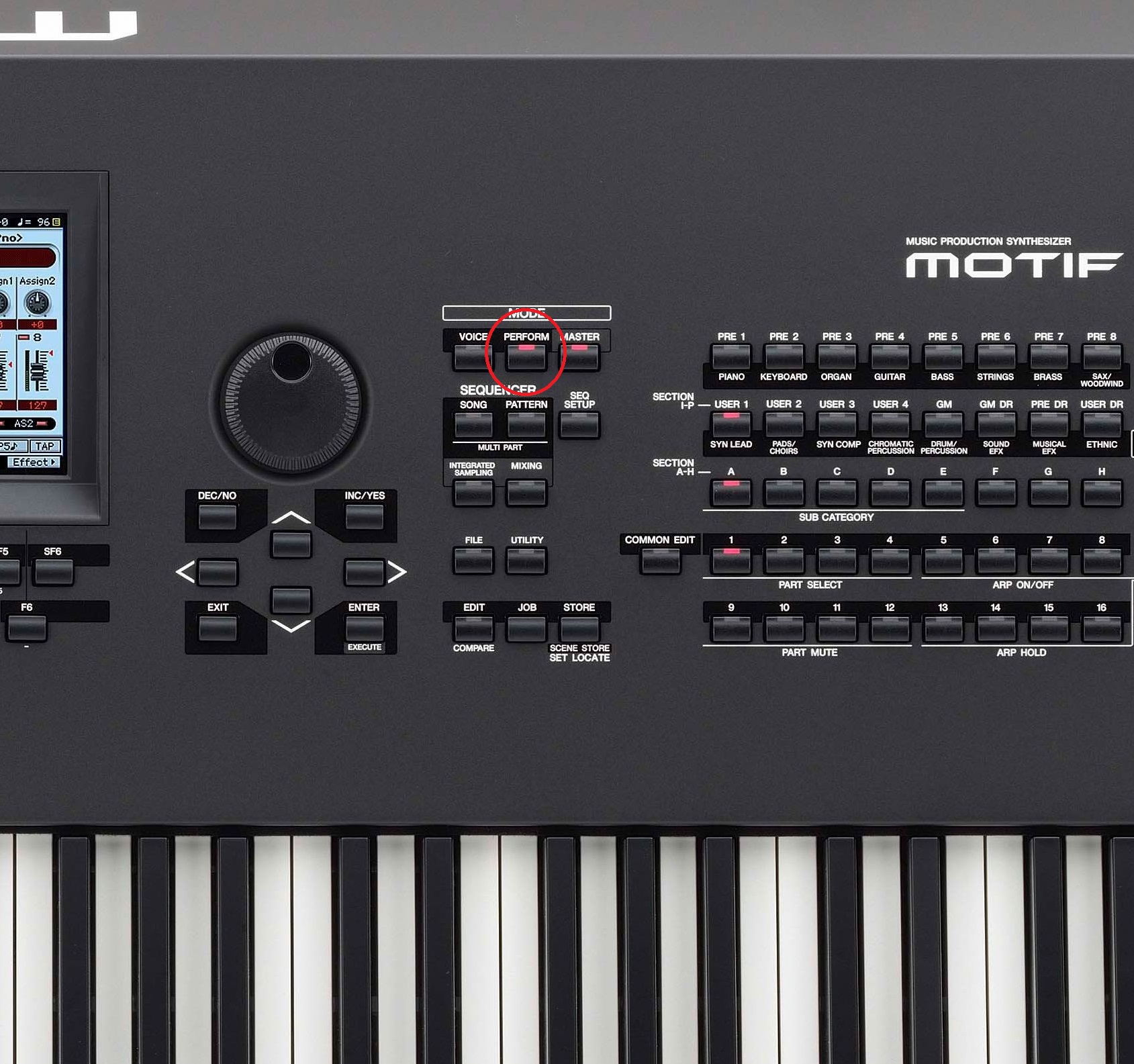
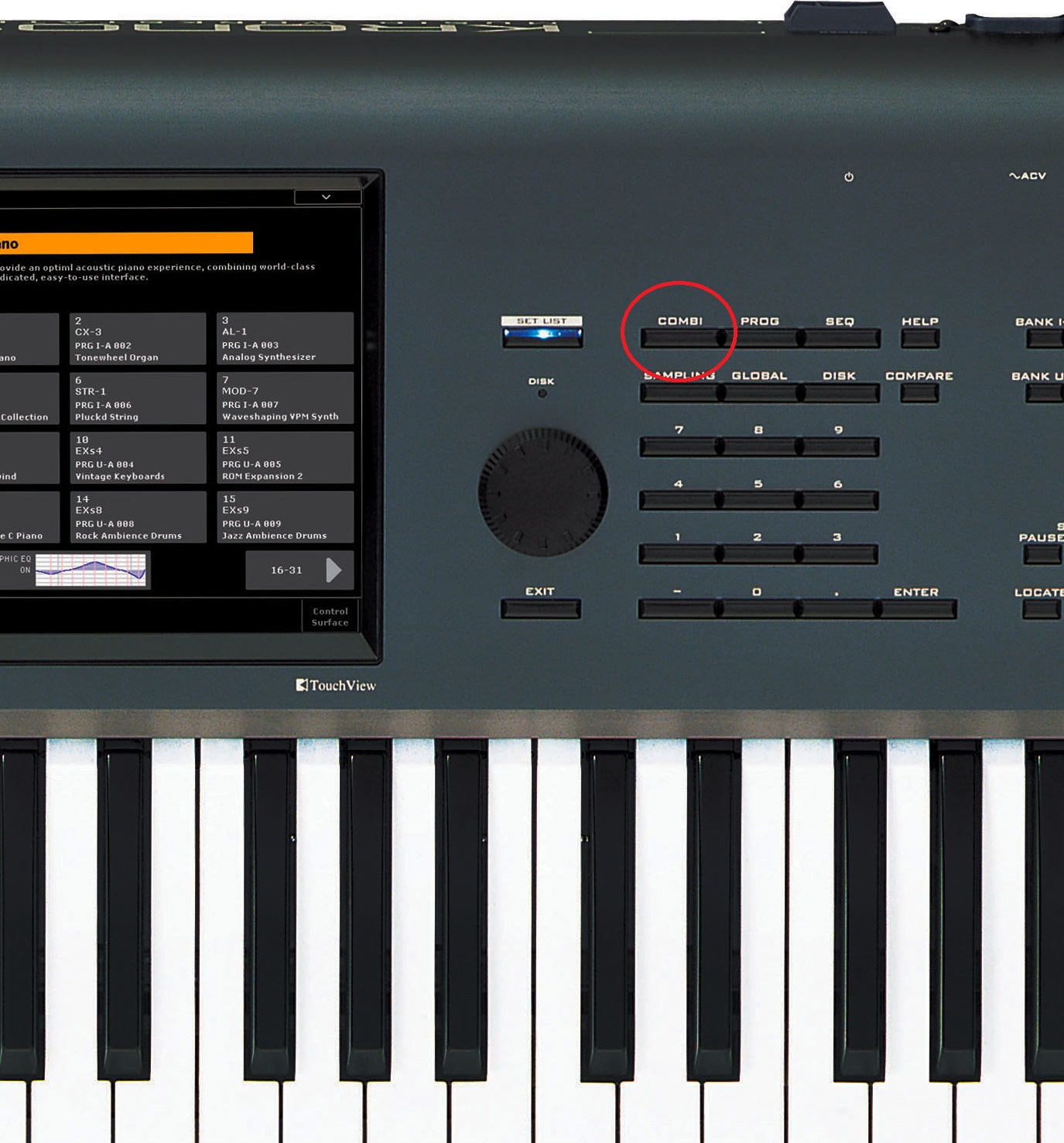
3. Use a Performance, Combi, or Multi mode
Some instruments provide a mode for combining multiple patches. The original article used Roland and Yamaha Performance modes and Korg combination modes as examples. The exact label and behavior depend on the model.
You can often assign a key range to each part. For example:
- Bass plays from C1 to C3.
- Piano plays from C2 to D4.
- Both sounds play in the overlapping C2–C3 range.
This combines splits and layers. Keep track of the keyboard's polyphony: several layers, stereo samples, and a sustain pedal can consume more voices than a single sound.
4. Connect another keyboard or sound module
A keyboard can send MIDI to another instrument, allowing one performance to trigger both sound engines. Connect the sending instrument's MIDI OUT to the receiving instrument's MIDI IN, then match the transmit and receive channels.
MIDI carries performance instructions, not audio. Route the audio outputs of both instruments to a mixer or another suitable audio input, where you can balance their sound.
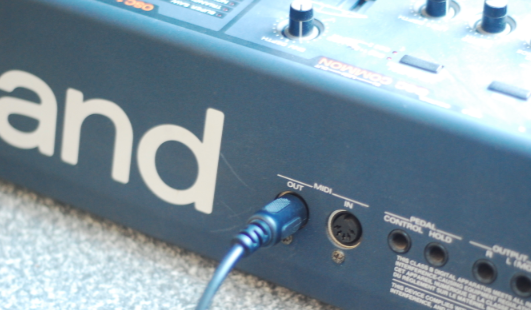
See MIDI explained for the connection and channel basics.
5. Layer virtual instruments on a computer
A software host can send your keyboard's MIDI to several virtual instruments at once. Each instrument can have its own level, range, and response to pedals or other controls.
The original article mentioned Cantabile, Brainspawn Forte, and V-Rack as examples from that period. Treat that list as historical; verify current compatibility before choosing software.

The live-performance guide explains the controller, computer, and audio-interface setup in more detail.
Listen to the combined result
A keyboard's ability to layer sounds is useful, but more layers are not automatically better. Check the balance in the full arrangement. Listen for crowded low frequencies, overly long releases, and a pad that obscures the piano's attack.
If you are choosing a keyboard, verify its layering and split controls before buying. The important question is whether it supports the combinations you actually need to play.