Connecting web apps with IFTTT, Zapier, and Power Automate
Originally published on jonatascastro.com. English edition translated and revised 01 Oct 2026. Historical examples are identified in the text.
When I wrote this article in 2017, I had been working on projects that needed email tools, social networks, and CRM systems to exchange information automatically. Zapier helped connect those separate pieces.
The useful idea is a workflow: something happens in one service, and another service responds. A submitted form might create a CRM contact, add an internal task, and notify someone who needs to follow up.
The original article compared IFTTT, Zapier, and Microsoft Flow. This edition keeps that comparison while separating the lasting ideas from the old pricing and feature counts.
Start with the workflow
Before choosing a tool, describe the process in plain language:
- What event starts it?
- What information do you need?
- What should happen next?
- What should happen if a step fails or the same event arrives twice?
That last question matters. An automation that quietly creates duplicate records or loses a submission saves less work than it first appears to.
IFTTT
IFTTT takes its name from “If This Then That.” You connect a trigger to an action in an Applet, such as responding to an event from one connected service by updating another.
The original article emphasized its approachable setup and personal-use examples. That remains a useful way to understand the model: choose an event, choose a response, and test the connection.
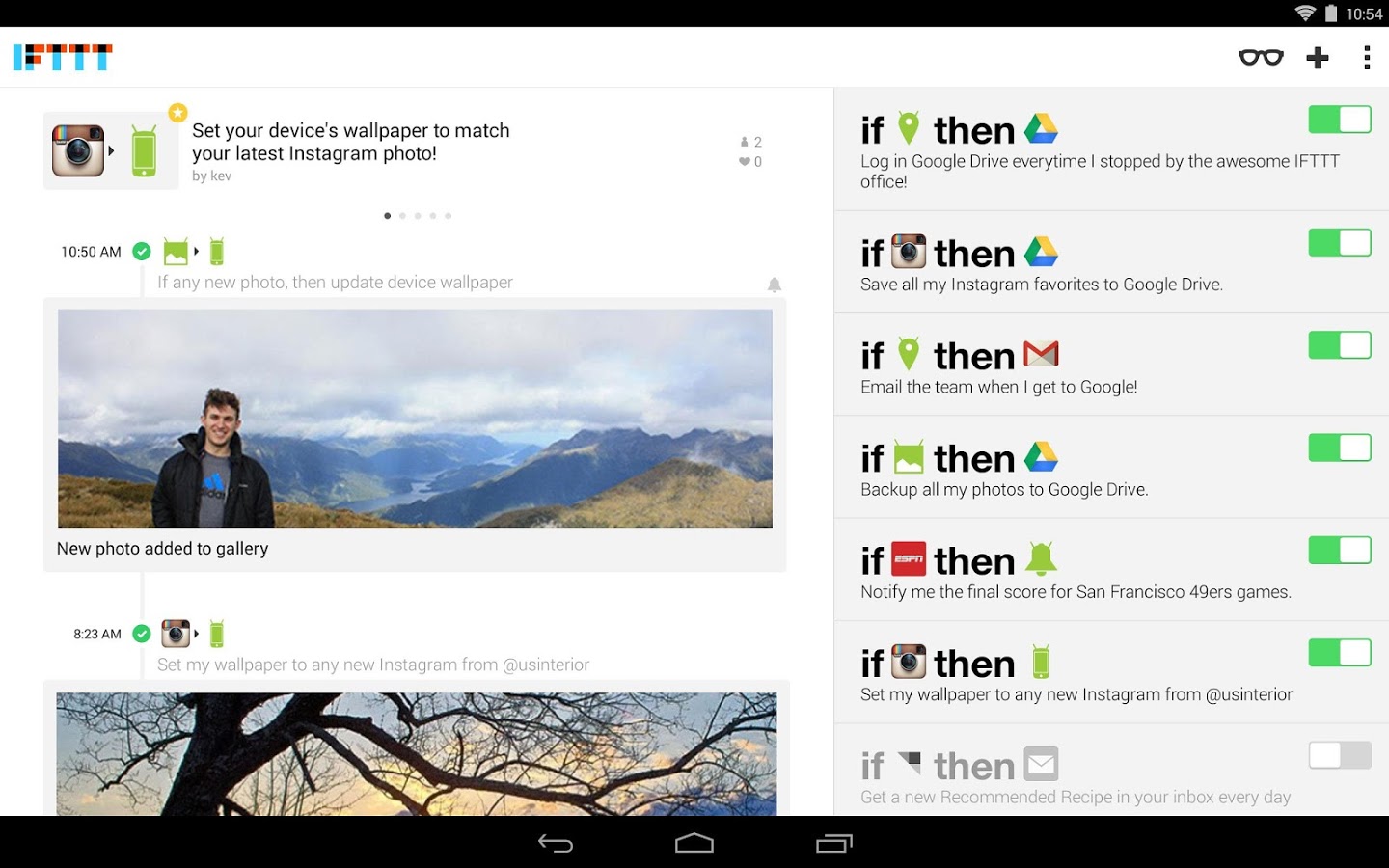
The old statement that IFTTT was simply free no longer describes all of its options. It has several plans; check the official plan descriptions for the features your workflow requires.
Zapier
Zapier uses Zaps to connect triggers and actions. In my projects, its appeal was bringing business tools together without writing a separate integration for every pair of services.
A useful example is a form submission that creates or updates a contact and then starts a follow-up process. Once several steps are involved, pay attention to how the workflow handles required fields, retries, and duplicate submissions.
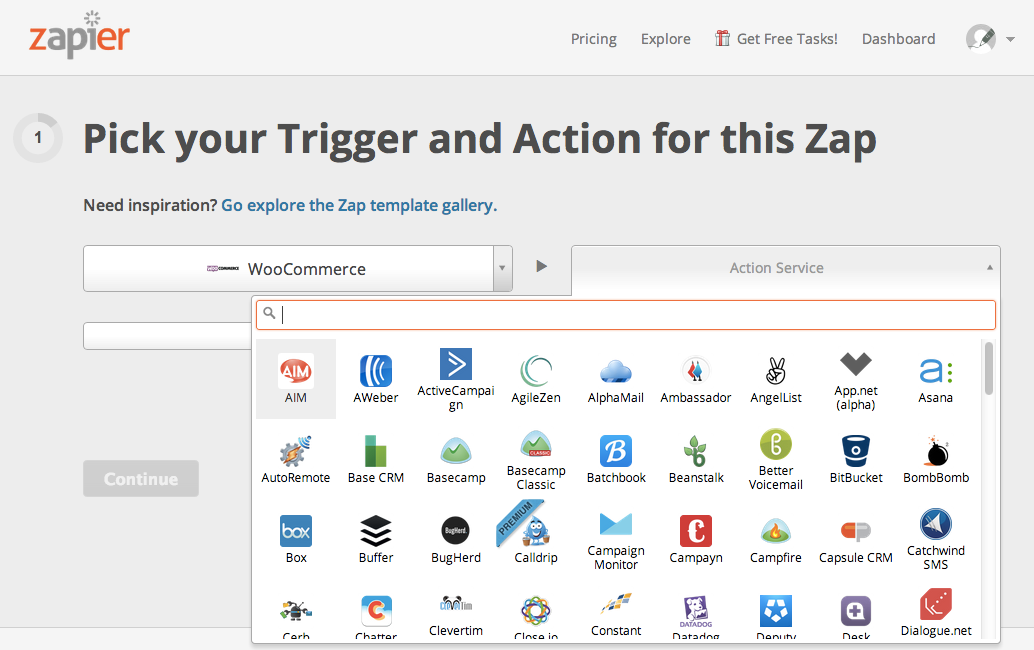
The 2017 article included specific plan limits, app counts, and prices. Those were a snapshot of the service at the time, rather than reliable buying guidance today. Check Zapier's current offering against the actual integrations and actions you need.
Microsoft Power Automate
The third service was called Microsoft Flow when the original article was published. Microsoft renamed it Power Automate in 2019.
It belongs in the comparison when your workflow involves Microsoft's ecosystem. The original screenshot shows the earlier Flow interface, not the present product.
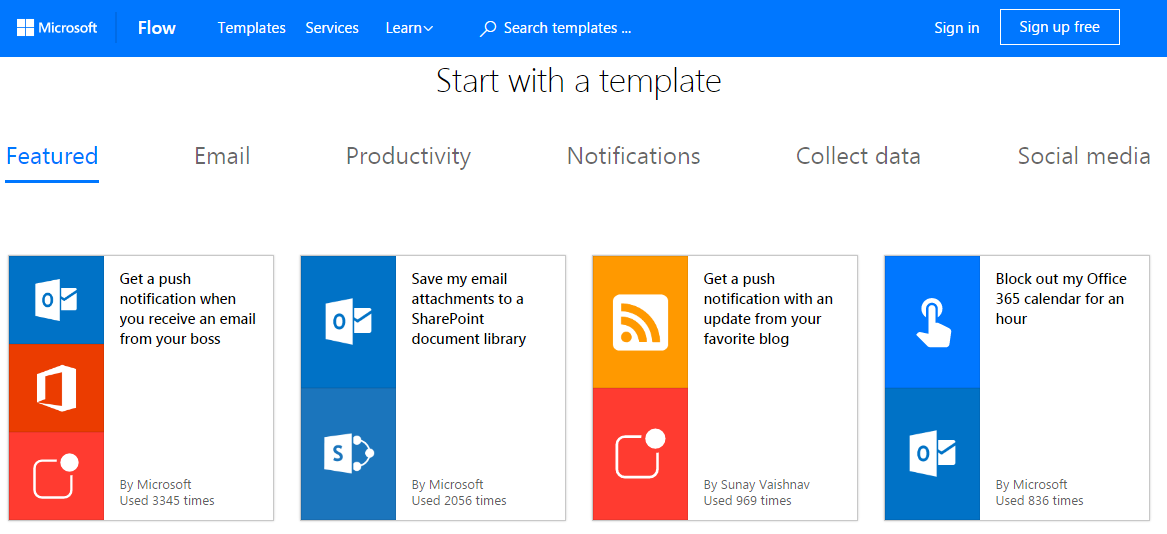
Use the Power Automate product page to check current availability and capabilities. The original description of a limited preview build is historical.
Choosing between them
Compare a concrete workflow rather than counting every integration a platform advertises. Confirm that the exact trigger and action are available, that the account can access them, and that failures are visible to someone who can fix them.
Start small: automate one repetitive task, run it with test data, and inspect the result. Add further steps once you know the first connection behaves reliably.
The original Portuguese article acknowledged an adaptation of Lifehacker's automation comparison. The English edition has been rewritten around the original topic; it does not reproduce that article's historical pricing comparison.